
Graphs
Editing on the graph page
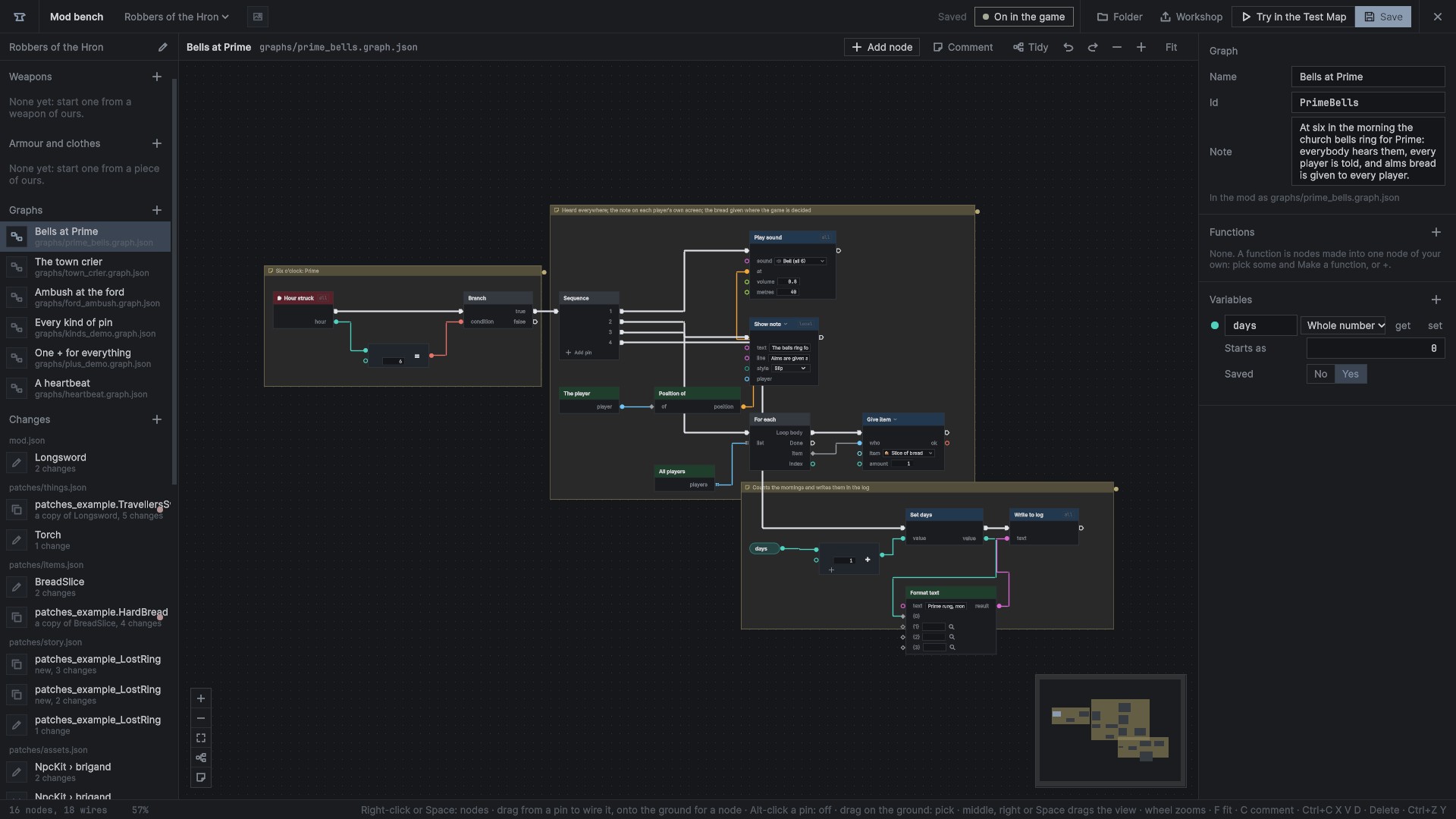
The graph page is the bench's canvas for graphs. Its wires and colours follow the team's Dialogue Studio, and its editing follows what node editors usually do. Every key here can be changed in the bench's settings.
Moving round
| pan | middle or right button drag, or Space and drag |
| zoom | the wheel, to the pointer (0.2 to 2), or + and - |
| fit | F or the Fit button: what is picked, else everything |
Under 45% zoom, nodes drop their pins' words and boxes and wires go thinner, so a big graph stays readable.
Nodes and wires
| add a node | right-click or Space on the ground, a double-click on the ground, or Add node |
| wire | drag from a pin to a pin. It snaps to the nearest pin that fits; one that doesn't says why |
| a node for a wire | drag from a pin and let go on the ground: the node list shows only what fits, and wires the pick in |
| move a wire | drag from a wired input, or grab a wire near its end |
| move all a pin's wires | Ctrl+drag from the pin to another on the same side |
| take a wire off | click it and Delete; Alt-click a pin; or right-click the wire |
| pick | click; Shift or Ctrl click adds; drag on the ground boxes what is wholly inside; Ctrl+A |
| move | drag. A lone node snaps to the grid and lines up with others; Alt drags freely |
| copy, cut, paste, duplicate | Ctrl+C, X, V, D, across graphs and mods. Variables used come along |
| undo, redo | Ctrl+Z, Ctrl+Y (and Shift+Ctrl+Z) |
| delete | Delete or Backspace |
Hovering a wire lights it and both its pins; a picked node lights its wires.
Reroute dots
Double-click a wire (or pick A reroute dot here from its menu) for a dot. Drag the dot to bend the wire's path. A wire can have several, Delete takes one out and its wires join up again, and a dot on a value's wire can feed several inputs. In a file a dot is a node, flow/Reroute. Q straightens the picked wire, moving the node it goes into level.
Comments
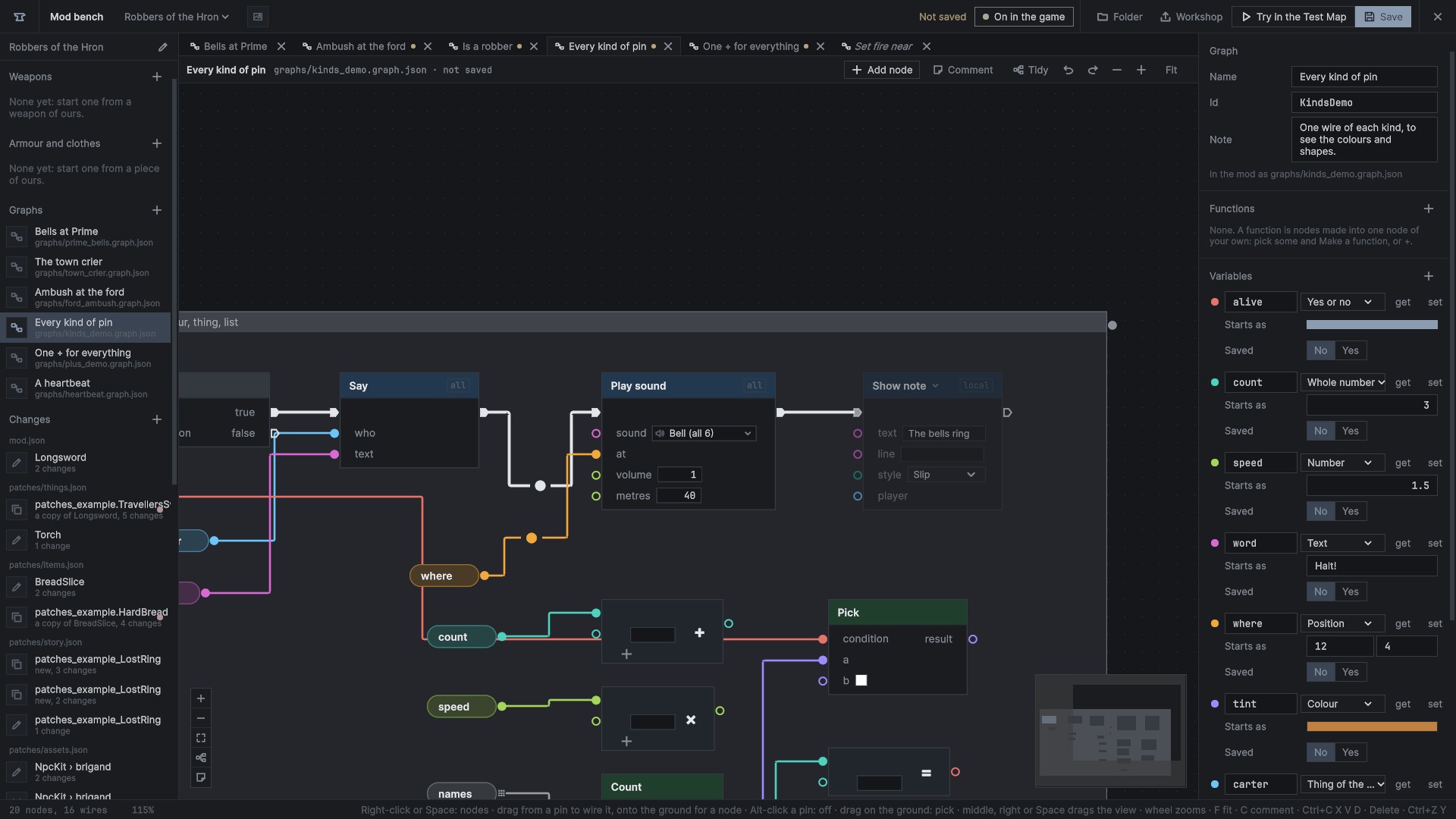
- C puts a comment box round the picked nodes, or in the middle with nothing picked, and lets you write in it. Its head drags it and the nodes inside (Alt: the box alone); its corner sizes it; a double-click on the corner fits it round what is inside.
- The dot on its right side dragged onto a node points the box at it.
- Right-click its head for its colour, writing, and deleting.
- Every node also has a comment bubble above it: right-click, Comment, or the side panel.
Arranging
- Shift+W, S, A, D line the picked nodes up along their tops, bottoms, lefts or rights. The node menu also has middles and centres, and Spread across and Spread down.
- Tidy lays the graph out left to right; with two or more picked, only those.
Finding
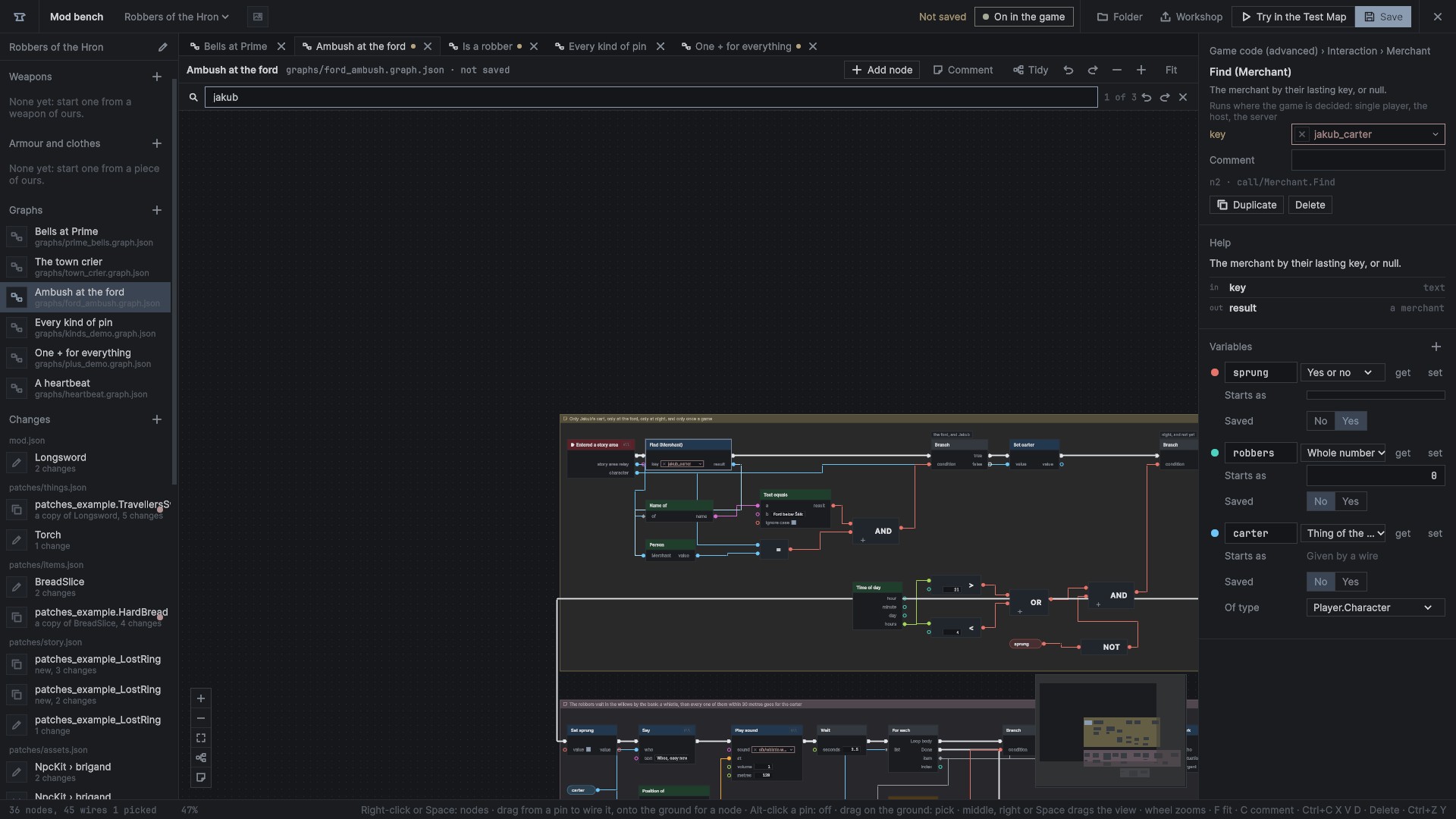
- Ctrl+F finds in the graph: nodes by title, comment or typed value, and comment boxes. Enter and Shift+Enter step through the hits, each picked and centred.
- Right-click a function's call or a variable's node, Find uses.
- The node list keeps Favourites (the star on a row) and Recent.
Pins and nodes
Right-click a pin for:
- Promote to variable: a variable of its kind, wired in
- Split into x and y for a position, and back
- Take its wires off
- Remove this pin on a pin added with + Add pin
Right-click a node for copy, duplicate, a comment box round it, its comment, taking its wires off, Make a function, Switch off and Switch on (a node switched off is drawn faded and a run passes straight through it), and delete.
Tabs
Each graph or function opened gets a tab across the top, keeping its own view. A click shows one; × or a middle click closes it.
Templates
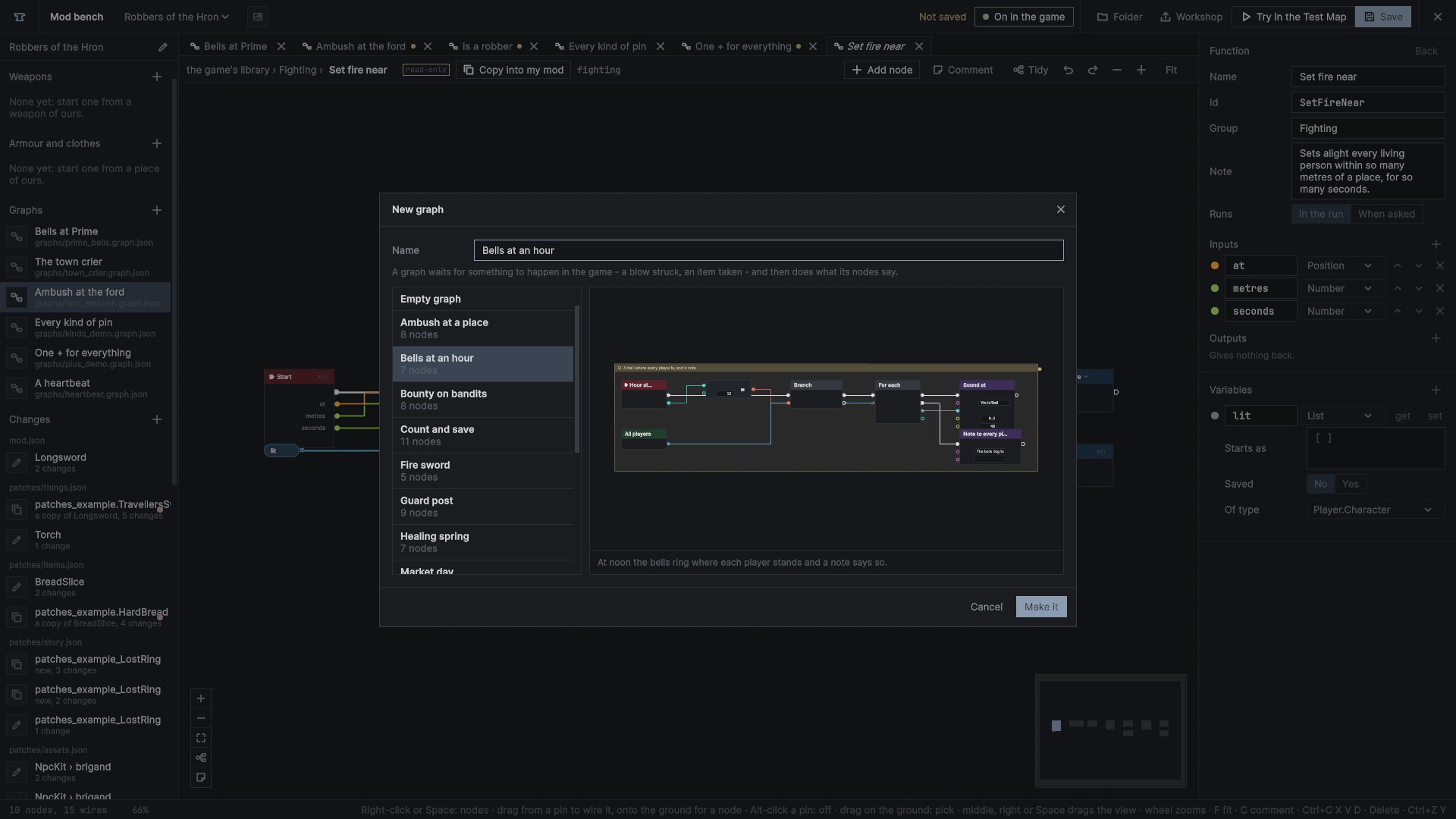
+ beside Graphs offers the game's templates beside Empty graph, the one picked drawn as it would open, with its note under it. Make it copies it under the name given. See Templates.
Saving
Save (Ctrl+S) writes every changed graph to its file and lists it in mod.json. A graph's file changed on disk by another program comes in by itself when nothing of it is unsaved on the bench; otherwise the bench says so and keeps its own. A new graph is listed in mod.json at once and written with the next save.
Wires: sharp or curved
The bench draws wires sharp by default: right angles laid round the nodes, never through one, wires of different pins never sharing a run. The settings switch them to curves, and set their thickness, corners and spacing.